
Seedance 2.0
Available nowShape a scene around your subject and the action you want to see. Add supported references to guide the look, and describe the sound alongside the visuals.
Explore Seedance 2.0 →Reveal a product, set a character in motion, or create a scene worth sharing. Start with an idea or an image, then describe what happens next.
Explore more tools
Find the right starting point for your shot. Explore how each model handles motion, reference media, and sound.
Shape a scene around your subject and the action you want to see. Add supported references to guide the look, and describe the sound alongside the visuals.
Explore Seedance 2.0 →
Plan the camera movement and, where supported, the opening and closing frames. Select Lite, Fast, or Quality and explore a shot with synchronized audio.
Explore Veo 3 →How it works
Create your first shot, watch it back, and refine the direction for your next take.
Start with a written idea, a still image, or reference media. To edit or extend an existing clip, choose a model that supports the task.
Describe the subject, the action, and the camera movement. Add references if needed, and explain what to take from each one.
Choose framing that suits your project, then select an available duration and resolution. Review the credit quote before generating.
Play back your video and check the details that matter. Download a take you like, or refine your brief to explore another direction.
Why Choose SotaVideoAI
Shape your shot in one workspace, with your brief, available controls, and completed takes close at hand.
Work with Seedance and Veo in the same place. Choose a workflow that fits your source material and the scene you want to create.
Use references to show the framing or mood you have in mind. Explain how each one should guide the shot.
See the settings supported by your chosen workflow, and plan your shot around the options available.
Return to recent clips to compare ideas. Preview your results and download the take that works for your project.
Model guide
Compare input types, variants, and controls to find the right fit for your shot. Available features vary by workflow.
Combine a scene brief with supported images or other references to develop motion and accompanying audio.
Available in the current model workflow.
Available in the current model workflow.
Available in the current model workflow.
Match your source material and intended shot to the options available in each model.
Application Scenarios
A launch, a story beat, a post for tomorrow: give the Seedance AI Video Generator a scene to work with and explore how it could unfold.

Give a familiar product a fresh setting. Start from a product image and explore a reveal, a seasonal scene, or a different opening for an ad.
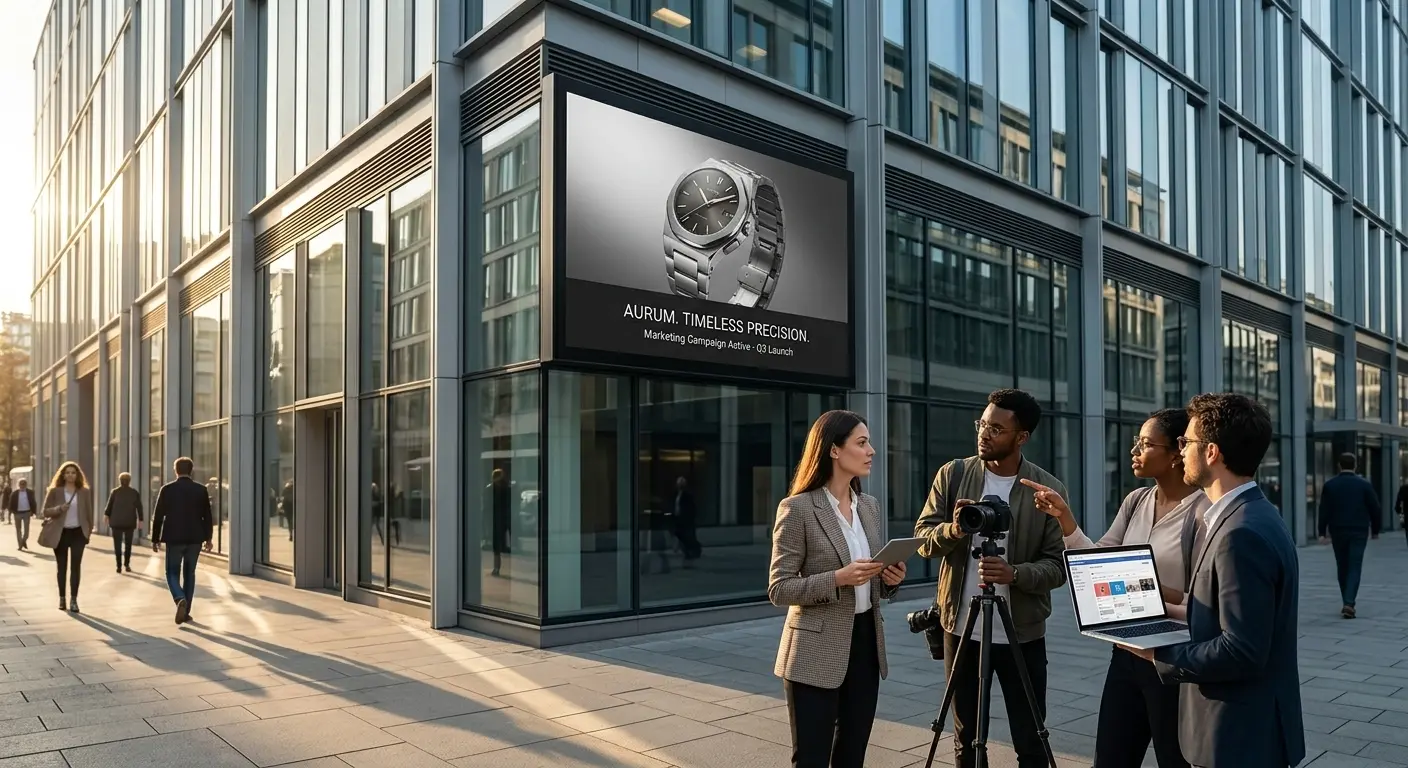
Put a campaign idea in motion before choosing a direction. Create short concepts that make pacing, atmosphere, and the opening shot easier to discuss.
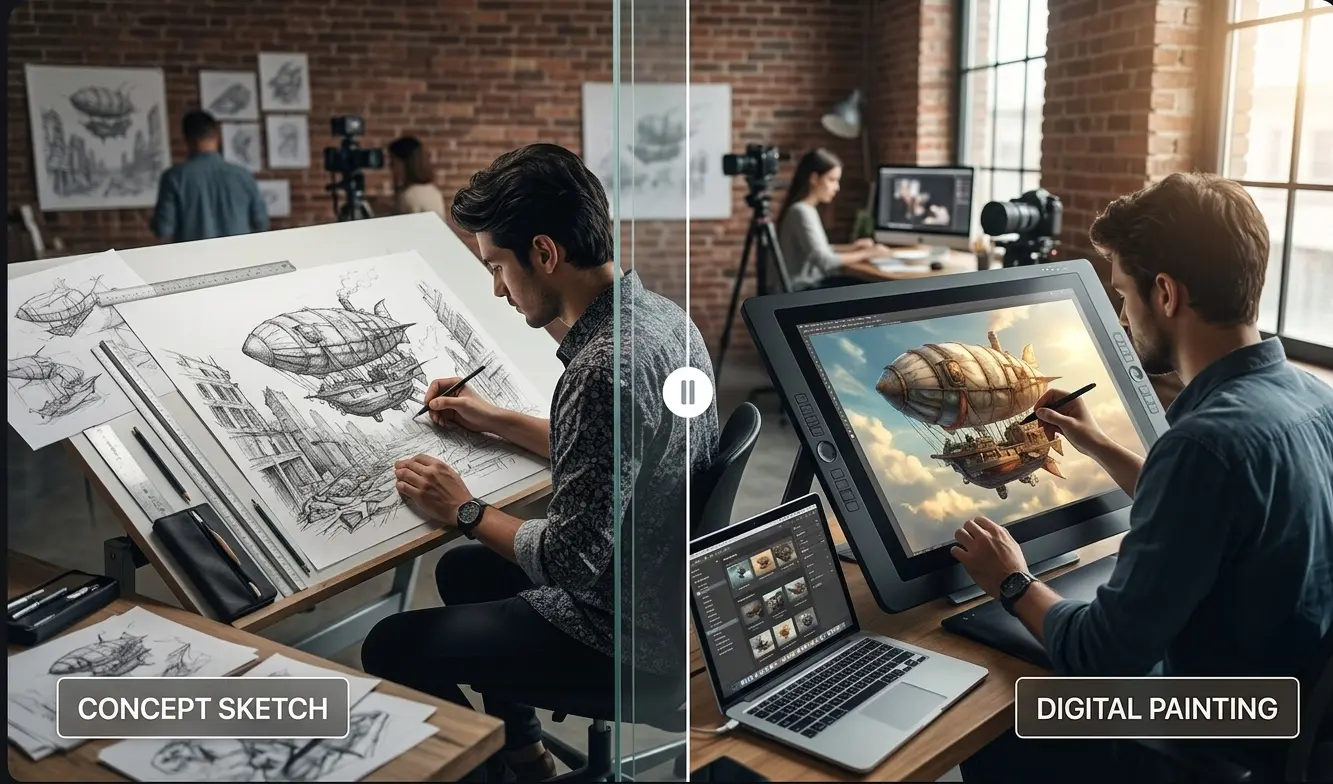
Try a character’s entrance, a change of setting, or a turning point in your story. Use references to communicate the look you have in mind.
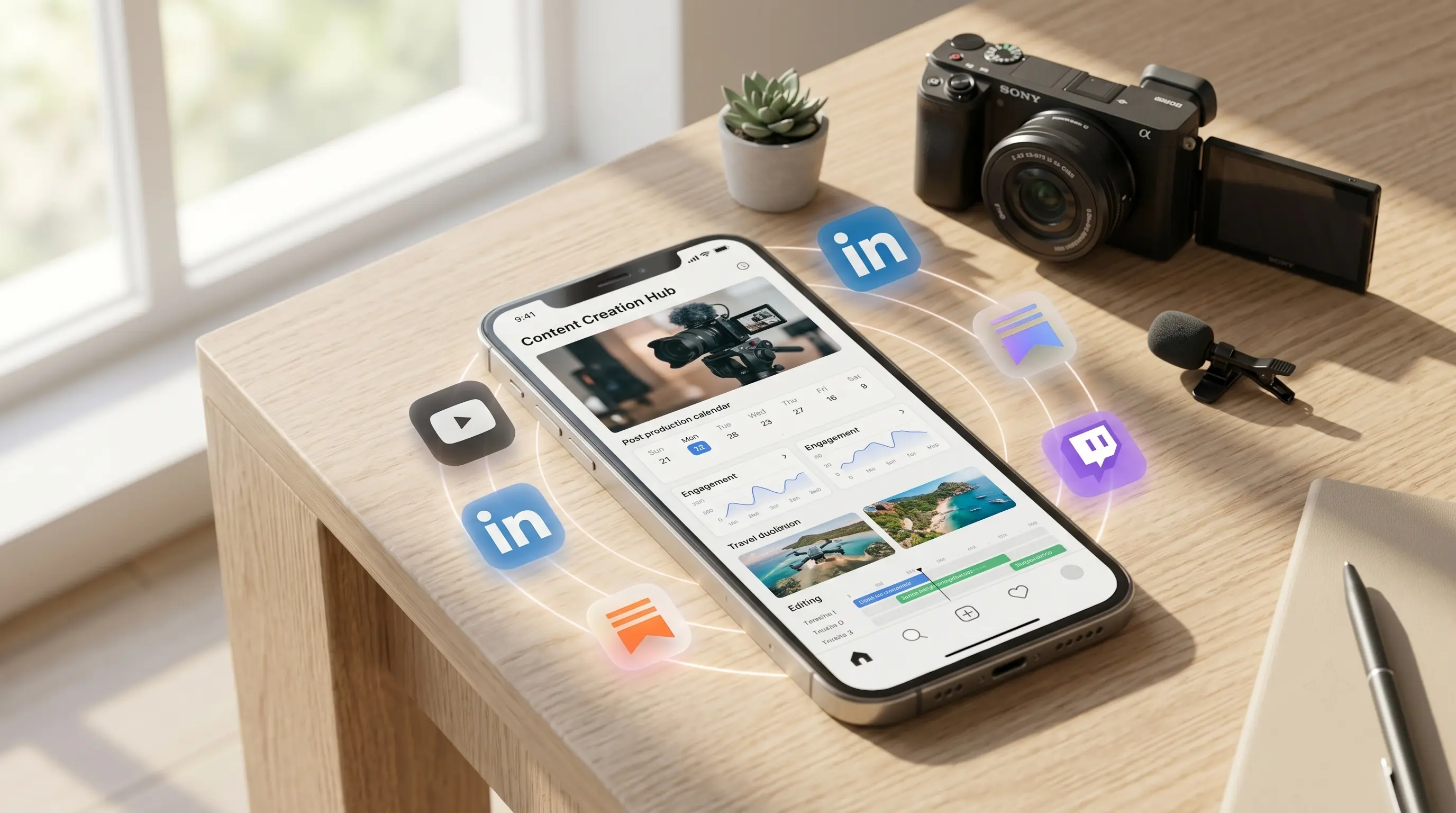
Turn one content idea into a short teaser or the next installment of a series. Experiment with the opening action and framing for each post.
Testimonials
Different projects call for different shots. These perspectives cover product, campaign, and storytelling workflows with the Seedance AI Video Generator.
E-Commerce Creative Lead
"One product photo turns into half a dozen seasonal cuts with Seedance 2.0, synced sound included, without booking a single reshoot."
Brand Strategist
"Veo 3 gives us the cinematic camera work our campaigns need, and switching to Seedance 2.0 for dialogue-heavy spots takes one click, not a new vendor."
Content Creator
"My character looks the same in every clip now. Seedance 2.0 keeps her consistent across a whole week of posts, something I never got from other tools."
Art Director
"Setting the start and end frame on Veo 3 gives me the exact transition I storyboard, no more approximating it in editing afterward."
FAQ
What to know before you create your first shot.
Picture your opening shot. Choose a model, describe the moment, and review the credit quote before you start.
Start creatingSotaVideoAI is an independent AI platform for video and image creation. SotaVideoAI is not affiliated with, endorsed by, or sponsored by OpenAI, Google, ByteDance, or any other AI model provider. Model names and trademarks belong to their respective owners.